How to Run an AI Video Generator Locally (Without ComfyUI)
Learn how to use your gaming PC's GPU to run a local AI video generator. Produce fully narrated, captioned shorts without building complex node graphs.
 SabinoCEO6 min readUpdated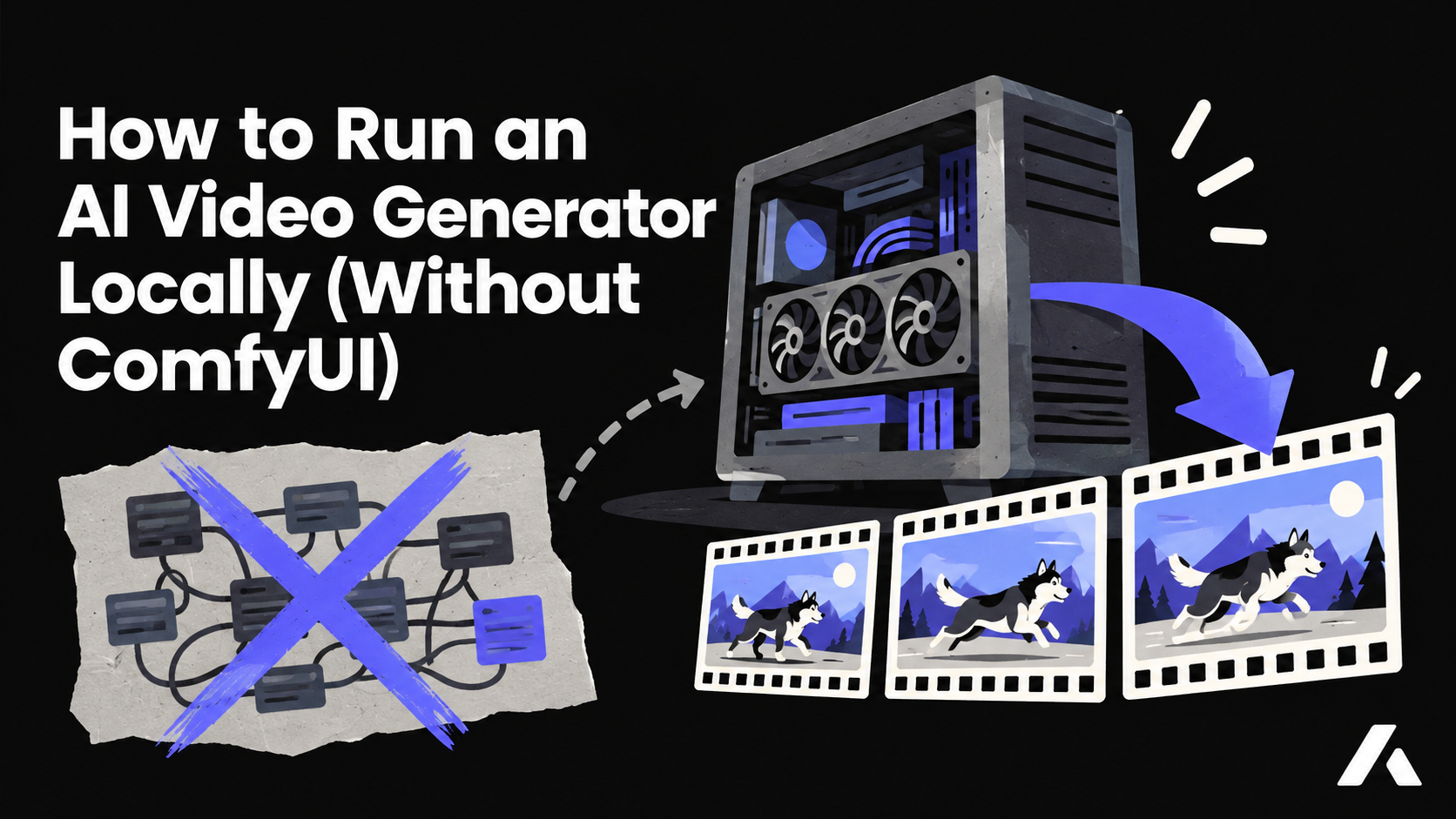
On this page
- What "local" actually means for AI video
- The DIY route vs. a packaged studio
- The hardware check
- How long a render takes
- From one idea to a finished short on your GPU
- Start from the script
- Lock down what must not change
- Review before you render
- When local is the wrong call
- Checklist before your first local render
If you own a recent gaming PC, you already have the most expensive part of an AI video setup: a high-end NVIDIA graphics card. Putting it to work is the hard part. Most local tutorials have you installing Python dependencies, downloading very large model weights, and wiring node graphs in ComfyUI, and the reward for an evening of troubleshooting is usually a silent five-second test clip.
This guide covers the distance between that test clip and a finished short with a script, narration, and captions: what "local" really means, the hardware you need, how long renders take, and when renting a GPU or using the cloud is the smarter choice.
What "local" actually means for AI video
In video generation, "local" describes one thing: where the clips are rendered. Turning an image and a prompt into moving footage is the compute-heavy step, and running it on your own GPU means you are not paying a cloud provider for every second of video.
It does not mean offline. In Aificient Studio, the desktop app renders scene clips on your GPU through a local runtime and can assemble the final video on your machine, while your projects and account live in an EU-hosted account. The split is practical: you can open the same project in the web app on a phone or tablet to fix a script or a character, then render from the desktop.
The DIY route vs. a packaged studio
If you have researched local AI video, you have met ComfyUI. It is free, extremely flexible, and the best way for technical users to experiment with new model weights and custom nodes. But it produces raw clips, not finished videos. Once the clip exists, most of the work is still ahead of you:
- Writing a full script and splitting it into scenes
- Keeping characters and products consistent from shot to shot
- Generating a voiceover in a separate audio tool
- Assembling the clips in an editor and aligning the audio by hand
- Transcribing the result and styling the captions
A packaged local AI video generator replaces the node graph with one studio. You type one line and the AI writes a structured concept broken into cinematic scenes. The app then generates the scenes, adds narration from a preset or cloned voice, burns in word-level captions, and stitches the final cut. The rendering still happens on your GPU; the assembly line of five separate applications does not.
The hardware check
Local video generation depends on VRAM, the memory built into your graphics card, not your computer's system RAM. A PC with 64 GB of RAM and an 8 GB graphics card will not run these models.
- Operating system: Windows. Aificient Studio also runs natively on macOS, but local GPU rendering requires Windows.
- Graphics card: a compatible modern NVIDIA GPU.
- VRAM: at least 16 GB. Compatible cards include the RTX 3090, RTX 4090, and RTX 5090.
How long a render takes
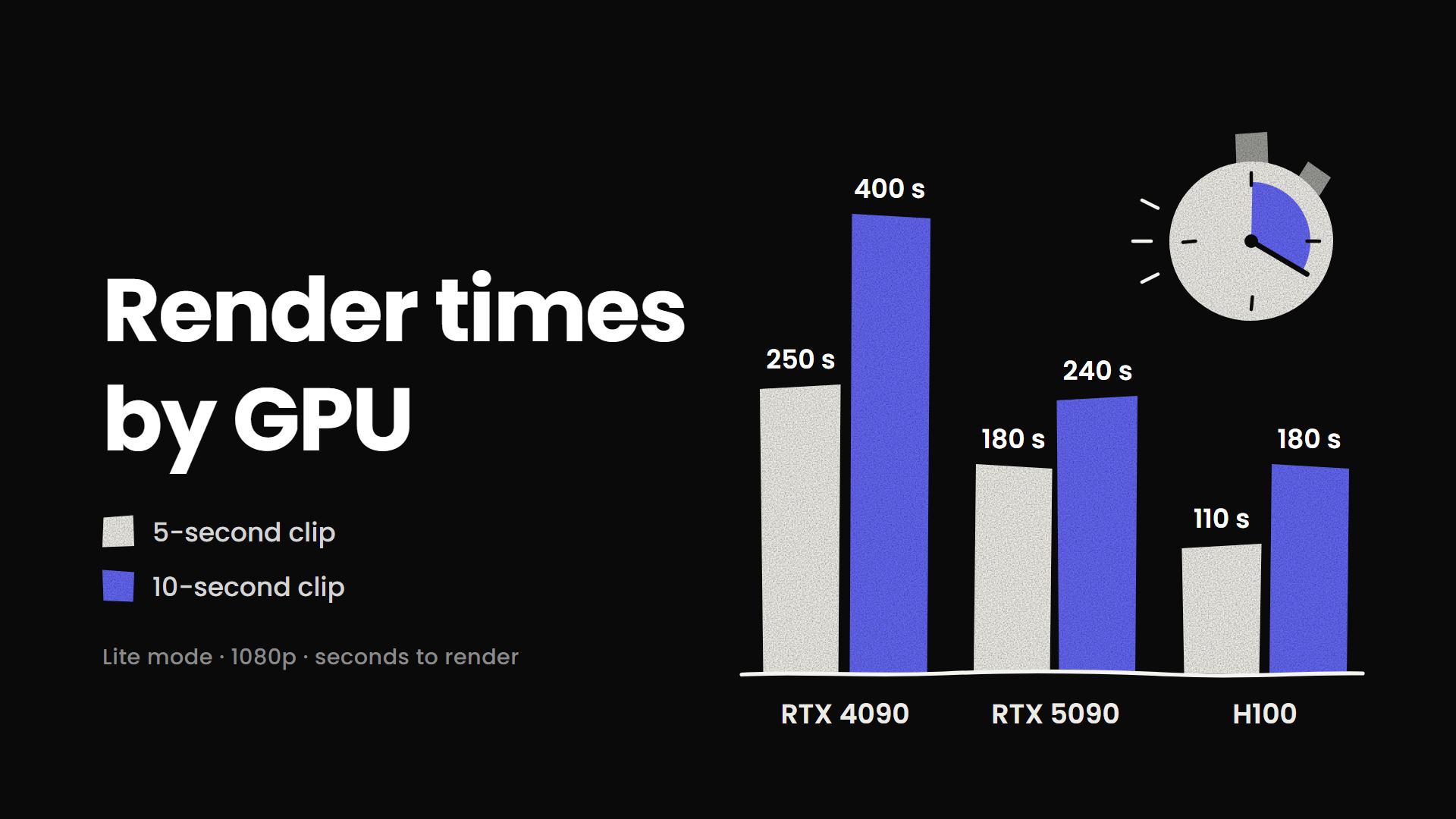
Reference times from the Aificient team for one 1080p clip in Lite mode:
- RTX 4090: about 250 seconds for a 5-second clip, 400 seconds for a 10-second clip
- RTX 5090: about 180 seconds for a 5-second clip, 240 seconds for a 10-second clip
- H100 (rented): about 110 seconds for a 5-second clip, 180 seconds for a 10-second clip
These are indicative times per clip, and a finished short is made of several clips. As a rough estimate, a 60-second video built from six 10-second clips means around 40 minutes of rendering on an RTX 4090 and around 24 minutes on an RTX 5090. Actual times vary with the settings and the scene.
From one idea to a finished short on your GPU
With render time measured in minutes per clip, the workflow that matters is the one that avoids wasted renders. In a packaged studio you act as the director rather than the node operator, and most decisions happen before the GPU starts working.
Start from the script
One prompt expands into a complete script with scene descriptions, sound-effect cues, and a cast. Every shot is generated for the story rather than pulled from stock footage.
Lock down what must not change
Upload a photo of a real product, a wardrobe item, a location, or a prop to the project's asset base. An uploaded photo is never regenerated, so the model is shown exactly what you provided. You then decide, scene by scene, which characters appear and which assets they wear or use, and the same jacket or storefront looks identical in every shot.
Review before you render
You can generate only the images and audio first and review every scene on a canvas before committing GPU time. If you rewrite a scene or change a character with an instruction such as "add a leather jacket", only what changed is rebuilt: a visual change regenerates the artwork and keeps the narration, while a voice change re-records the audio and keeps the artwork.
When the video is done, the desktop app can publish or schedule it on TikTok through your own signed-in session on your device, so platform logins never touch Aificient's servers.
When local is the wrong call
Local rendering is not always the right answer. If you work on a Mac, your card has less than 16 GB of VRAM, or you need the machine for other work while a long project renders, there are two alternatives inside the same app.
- Rent a GPU: from the Windows or macOS desktop app, rent an RTX 4090, RTX 5090, A100, or H100 through your own Vast.ai key, billed by the second, with RTX 4090 offers starting at around $0.40 an hour. You can select several ready GPUs at once and the scenes are split across them, so the project finishes sooner.
- Use Aificient Cloud: a subscription option billed in credits per scene, with Lite and Pro tiers and no hardware to configure. It is also what the web app uses, so it works from a phone or tablet.
Checklist before your first local render
- Confirm your VRAM: check that your NVIDIA card has at least 16 GB of its own memory.
- Update your drivers: current NVIDIA drivers prevent many runtime errors under heavy load.
- Free up VRAM: close games, video editors, and 3D software so the render gets all the memory the card has.
- Check your storage: the local runtime and its models need free disk space, and your projects count against your account storage, which Settings shows on a meter with warning and critical states.
- Start small: make your first project a 15-second video in Lite mode to learn how your card behaves before attempting a 60-second one.
- Review assets first: generate images and audio only, fix what you do not like, and render once.
- Turn on notifications: the desktop app can notify you when a scene finishes and when the final video is ready, so you do not have to watch the queue.
The graphics card in your PC can already render the footage. What turns that footage into a finished video is everything around it: the script, consistent characters, narration, captions, and assembly. Start with one short project, time it on your own hardware, and you will know whether local, rented, or cloud rendering fits the way you work.


Your move
Write the idea. Post the video.
One written line becomes a finished, original short — scripted, cast, voiced, and rendered — ready to post to TikTok, Reels & Shorts.
 A lone samurai leads the charge at dawn — cinematic, photoreal.